NTSC or PAL
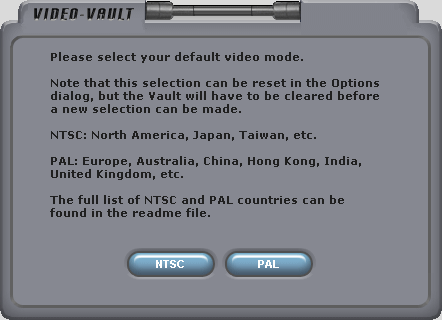
The first thing you have to do in Video Vault is select PAL or NTSC. This can be changed later if you make a mistake.
Video Vault Interface
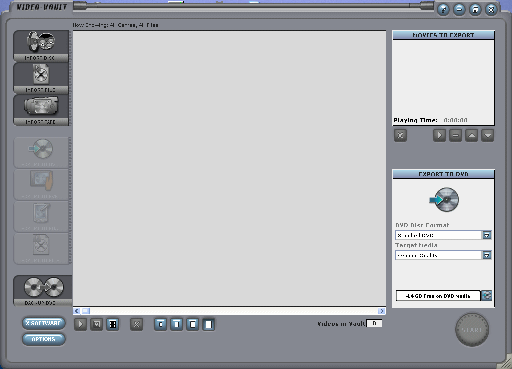
The main Video Vault interface is quite easy to understand. On the left you have several Import and Export buttons. However you cannot use the Export buttons yet because you have no movies in your Vault. Import disc will allow you to import VCD and SVCD discs which can then be converted to DVDs or to several devices.
You can use the Import File button to import many different video types including MPEG files, AVI files and WMV files. Make sure you have the proper codecs installed if your AVI files are DivX or XviD movies.
You can use the DVD backup button to begin the DVD backup process. Video Vault also supports Dual Layer DVDs which will allow you to make perfect backups of DVDs (since no compression should be needed to make the DVD fit) We will look at DVD backups in a moment, but first, lets take a quick look at the options. Click the Options button (The X Software button will launch the X Software homepage).
Video Vault Options - Default Folders
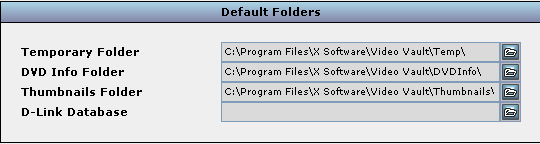
The first thing the options allow to be changed are the Default folders. Make sure the Temporary Folder is on a HDD with enough space for the processes Video Vault will be working on. You can change any of these folders to whatever you want, but the default folders inside the installed directory should be just fine, unless you'd rather store everything on an external HDD.
Video Vault Options - Default DVD Burner

We are now at a stage where DVD burners are becoming more inexpensive. For that reason many of us have multiple DVD burners. This is where you would set the default burner. If you have a Dual Layer burner then I suggest you select that s your Default burner. Watch out for virtual drives that you could have created with other programs.
Video Vault Options - Vault Folders
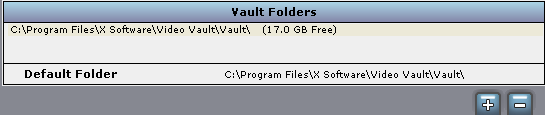
This is very important.When you import files to your vault they must go somewhere so the Vault Folders is where they will be stored. Make sure that a folder with enough free space is selected. You can add multiple folders and select one as default. To add a folder simply press the + button or to remove one, select it in the list and click the - button.