Video Vault - File to DVD conversions

One of the most popular topics in the AfterDawn forums is converting downloaded video to DVD to watch on a standalone DVD player. Video Vault is capable of doing that task for you quickly and easily and it will also burn for you so there is no need for external burning packages. Start by clicking the Import File button.
Video Vault - File to DVD - Step 1 - Open Files
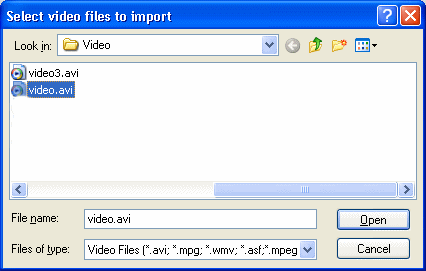
When you click the Import File button you will get a chance to browse to a file and open it. The files you can open includes MPEG, AVI and WMV files. I have decided to open an AVI file since it is the most popular video file to download.
Locate the file and select it. When it is selected, click the Open button and a few moments later you will see the file in the Vault list. If you double click it, it will begin playing. You can also edit the name of the movie file by right clicking the name when it is in the vault. The next step is to change the Import settings.
Video Vault - File to DVD - Step 2 - Import settings
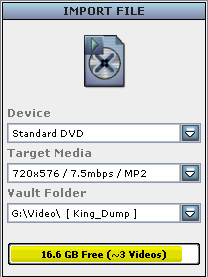
You have to now decide what format you want to import the files to the vault in. Firstly select the device, in this case it will be simply DVD. You do not have many options for birate and resolution settings so I suggest you find a birate calculator before you select which option you would prefer to go with.
You can select Vault Folders based on the Vault folders you have added in the options part. After you have selected your options you can begin the importing process which could take some time.
Video Vault - File to DVD - Step 3 - Start

All that's left to do now to begin the importing is hit the Start button. You will see it begin to encode immediately. The amount of time it takes depends on the Input file length. When it is done, you will now have the ability to output it.
Video Vault - File to DVD - Step 4 - Export
When you have successfully imported the file into your vault you can now easily export it to DVD. Video Vault is able to burn DVDs (supports Dual Layer) and all you have to do to begin is click the Export to DVD button.