Video Vault - Backup DVD - Step 1
The first thing you have to do is simply click the Backup DVD button.
Video Vault - Backup DVD - Step 2 - Open Folders
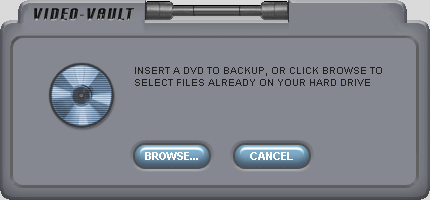
If you try to open the DVD, you will get the CSS message. So you have to open the folder you have ripped to the HDD with DVD Decrypter. Click the Browse button.
Select the folder that contains the DVD files (VIDEO_TS).
Video Vault - Backup DVD - Step 3 - Settings
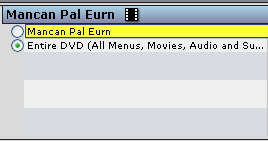
The first thing you have to do is choose whether you want to backup just a part of the DVD or the entire DVD. The more you add the longer the entire conversion is going to take (unless you use Dual Layer which would be much faster). If you want movie only then select the other option it gives. There is also a drop-down box that will allow you to select Display All Movies or Display Largest Movie. Generally the largest movie is the main movie on commercial DVDs
Video Vault - Backup DVD - Step 4 - Audio and Subtitle Selection
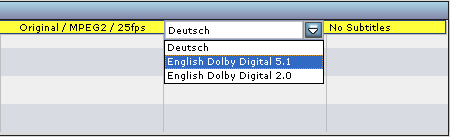
If you have selected just a movie then you will have to select what audio track and what subtitles you would like on the output DVD. Scroll across to find the audio and subtitle selection drop down boxes. In order to choose one, right click on them and the selection will pop up. Select what you want and then you are ready to begin.
Video Vault - Backup DVD - Step 5 - Dual Layer?
There will be no drop down selection for devices this time, but you will have the option of using Dual Layer media if you have a compatible burner. If you can use Dual Layer then do so, as it will make the process much quicker and the quality will b the exact same.
Video Vault - Backup DVD - Step 6 - Begin Process

Just like last time you can begin the process with the big start button.
Conclusions
Video Vault's backup and DVD conversion capabilities are excellent and very easy to use for any newcomer to digital video. Since this is just a review I will stop here but I will be adding a guide to using Video Vault very soon that will include much more options for the program, such as transferring movies to other devices. Keep an eye out for that.
Finally
If you have any comments or questions about Video Vault, please visit the XSoftware support forums.
Version History
v1.0 -- 10th June, 2005, First version online (Dela)